Installation and testing
Requirements
Prepare a Worlds project created with VCC (VRChat Creator Companion).
Back up your project
Create a backup before importing Object Spawn System so that you can restore the project if a problem occurs.
Close Unity, save the entire project folder as a ZIP archive, and keep it in a location separate from the original project.
ALCOM, an unofficial alternative to VCC, can create a ZIP backup of a Unity project with a single button.
Import
- Open the target world project in Unity
- Import the Object Spawn System unitypackage
- Confirm that the
PurabeWorks/ObjectSpawnfolder appears in the Project window - Confirm that there are no compilation errors in the Console
Test the sample scene
- Open
PurabeWorks/ObjectSpawn/SampleScene.unity - Start the world with the VRChat SDK testing feature
- Interact with a Spawn switch and confirm that an object appears
- Place the spawned object in a Return trigger and confirm that it becomes hidden
- Spawn multiple objects and confirm that the Reset switch hides all of them
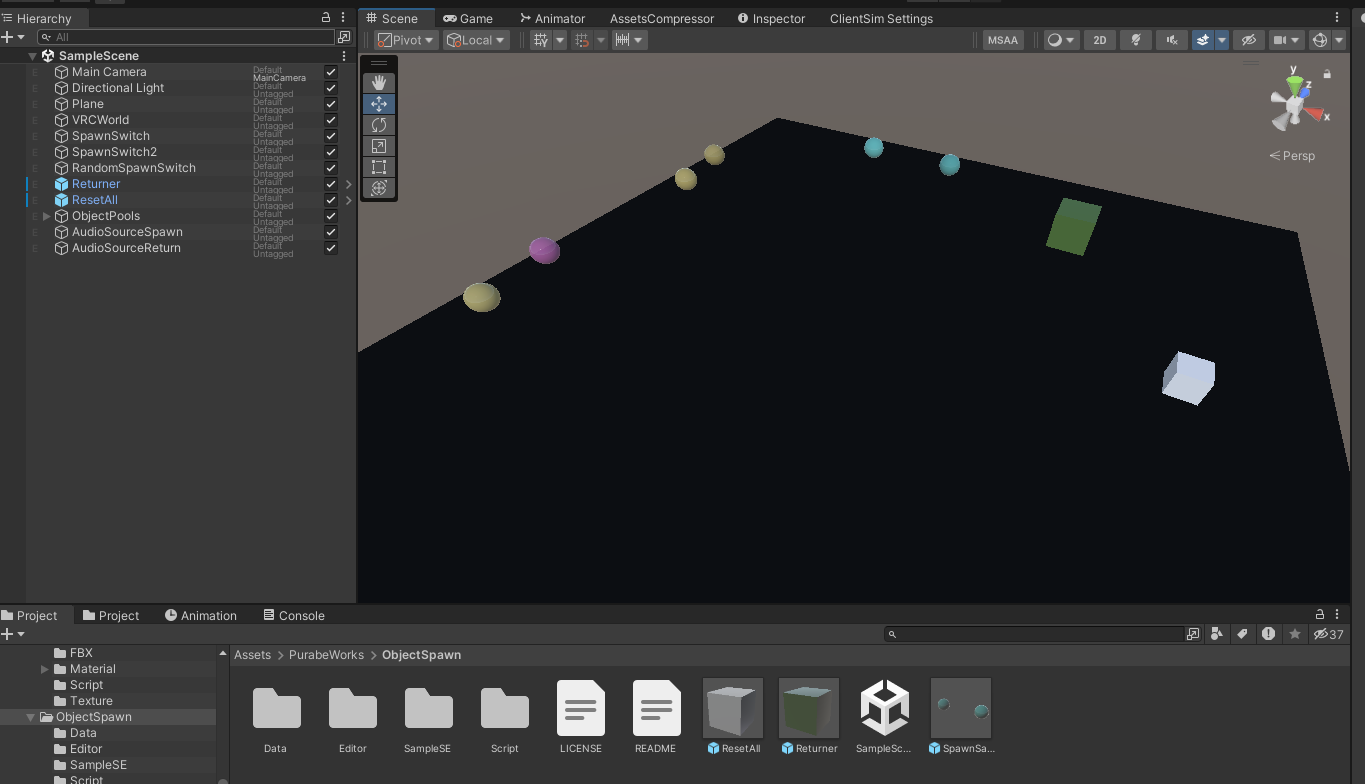
Until you are familiar with the system, the most reliable approach is to duplicate the working sample setup and replace the Pool contents and appearance.
Next steps
- Prepare a Pickup for spawning
- Configure VRCObjectPool
- Create a Spawn switch
- Create a Return trigger
- If needed, create a Reset switch
Structure supported by the standard version
Pool target and Return targetThe GameObject registered in VRCObjectPool, the GameObject entering the Return trigger, and therefore the GameObject containing VRCPickup, must all be the same GameObject.
If you need to use objects with a different structure, consider the Object Spawn Extension.