Create a Return trigger
When a visible object enters a Return trigger, the Pickup is dropped and the object is hidden.
Setup
- Add a GameObject for the Return trigger to the Hierarchy
- Add the
ReturnObjectcomponent - Add a Collider and enable
Is Trigger - In
PoolsonReturnObject, register the GameObject containing theVRCObjectPoolthat manages the objects to hide - Set
Layerto the layer number of the Return target GameObject
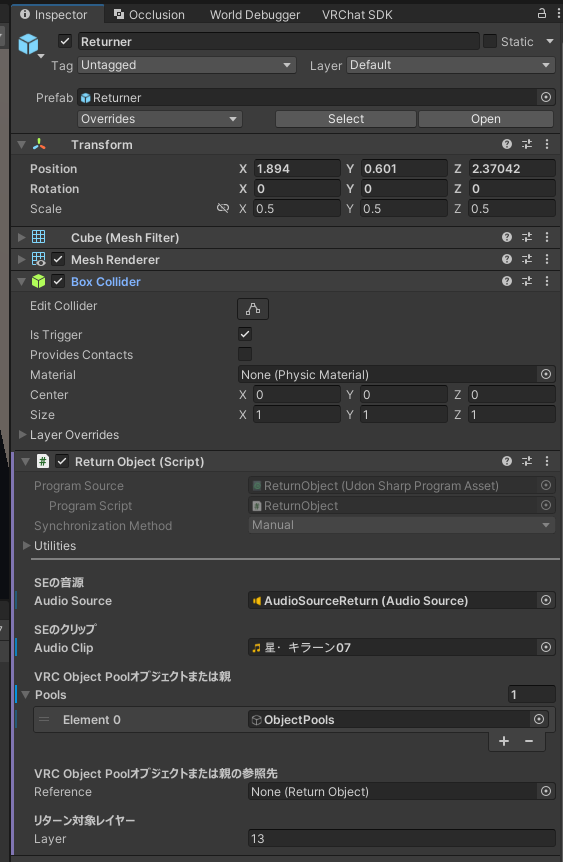
The default Layer is 13, which is VRChat's Pickup layer.
If a Pickup unrelated to Object Spawn System uses the same layer, entering the Return trigger may force that Pickup to Drop and make it impossible to retrieve. Use a layer dedicated to Return targets to prevent unintended reactions.
See Prepare a Pickup for spawning for instructions on creating a dedicated layer.
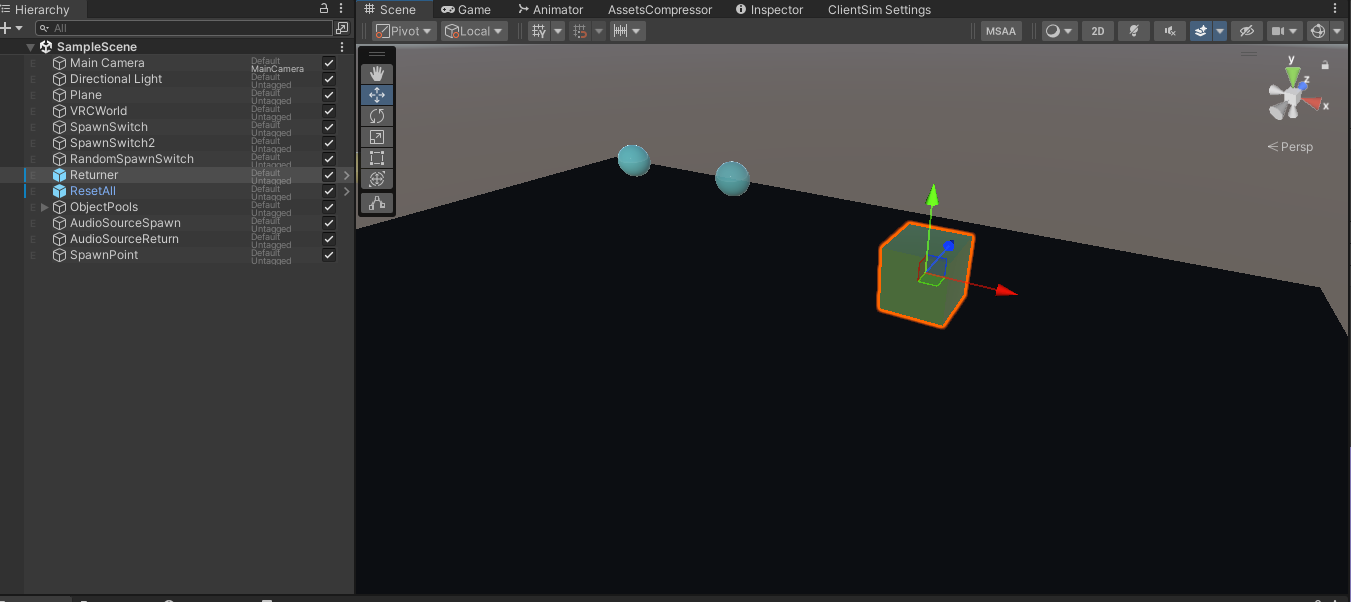
Register multiple Pools
You can register either of the following in Pools.
- A GameObject containing a
VRCObjectPoolcomponent - A parent GameObject containing multiple child
VRCObjectPoolcomponents
If you use separate VRCObjectPool components for food, drinks, and other categories, place them under an empty parent GameObject.
ObjectSpawnPools
├─ FoodPool
├─ DrinkPool
└─ DessertPool
In this example, registering ObjectSpawnPools in Pools makes every VRCObjectPool under it a Return target.

Share settings with another ReturnObject
To use the same Pool settings for multiple Return triggers, assign a configured ReturnObject to Reference.
This allows multiple Return triggers to share the same Pool settings.
Return targetIn the standard version of Object Spawn System, the GameObject entering the trigger must itself be registered in VRCObjectPool.
Test the trigger
- Display an object with a Spawn switch
- Place the displayed object in the Return trigger
- Confirm that the Pickup is dropped and the object becomes hidden
See ReturnObject settings for details about each field.
If needed, continue to Create a Reset switch.