Installation and testing
Requirements
Prepare a Worlds project created with VCC (VRChat Creator Companion).
ObonEasy v3.0 or later is required to reuse offsets configured on its TrayItem / TrayItemManual. You do not need to install ObonEasy when this integration is not used.
Back up your project
Back up your Unity project
Create a backup before importing Object Spawn Extension so you can return to the previous state if a problem occurs.
Close Unity, save the entire project folder as a ZIP file, and store it separately from the original project.
ALCOM, an unofficial alternative to VCC, can create a ZIP backup of a Unity project with one button.
Import
- Import the Object Spawn Extension unitypackage
- Confirm that
PurabeWorks/ObjectSpawnexists in the Project window - Confirm that
PurabeWorks/ObjectSpawnExtensionexists in the Project window - Confirm that the Console contains no compilation errors
Test the sample scene
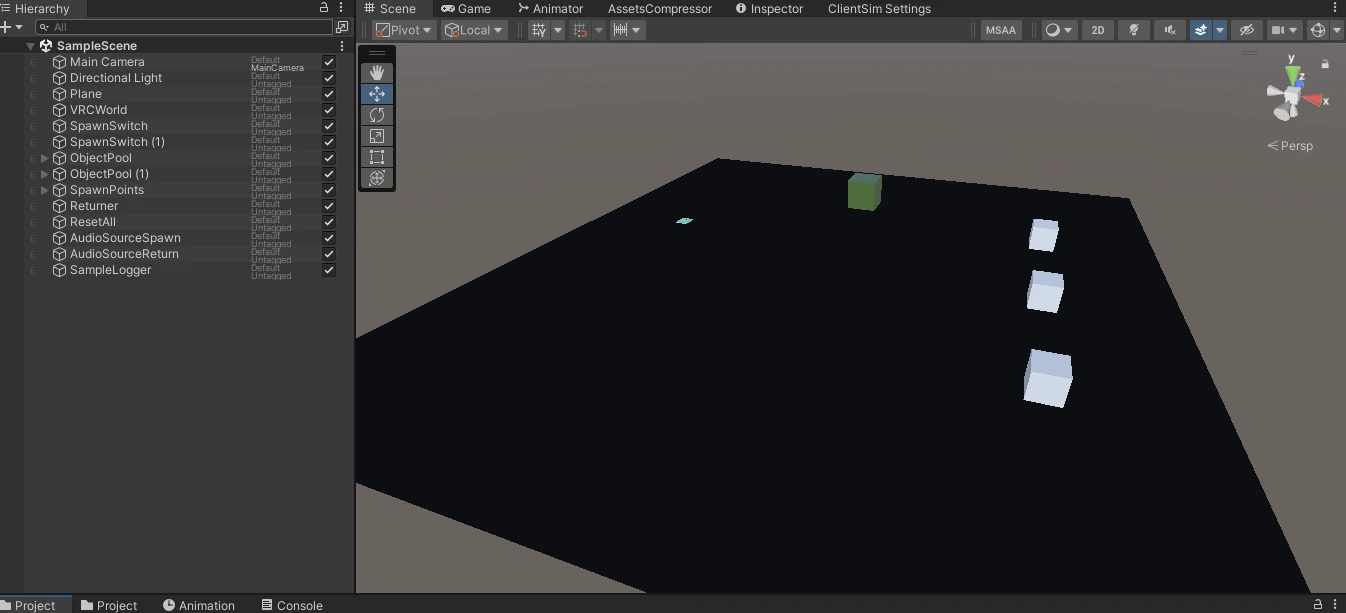
- Open
PurabeWorks/ObjectSpawnExtension/SampleScene.unity - Start the world with a VRChat SDK testing feature
- Interact with a Spawn switch and confirm that an item appears
- On a switch with multiple spawn points, confirm that the item appears at the point nearest to the player
- Place a child Pickup in a Return trigger and confirm that the entire item becomes hidden
- In a sample with event notifications configured, confirm that the Unity Console displays a received-event log
Next steps
If this is your first time using Object Spawn System
- Prepare a Pickup for spawning
- Configure VRCObjectPool
- Create a Spawn switch
- Create a Return trigger
- If needed, create a Reset switch
If the scene already uses the standard Object Spawn System
See Migrate from Object Spawn System.
If you want to configure Extension features
- For multiple spawn points, see Configure multiple spawn points
- For per-item position and rotation offsets or ObonEasy offset settings, see Adjust position and rotation when spawning
- When a Pickup is on a child GameObject, see Configure a complex Pickup
- For items made by henoGohan, see Configure an item made by henoGohan
- To call custom logic, see Configure event notifications