Configure multiple spawn points
In addition to a single Spawn Point, SpawnObjectExt can use multiple Spawn Points.
Setup
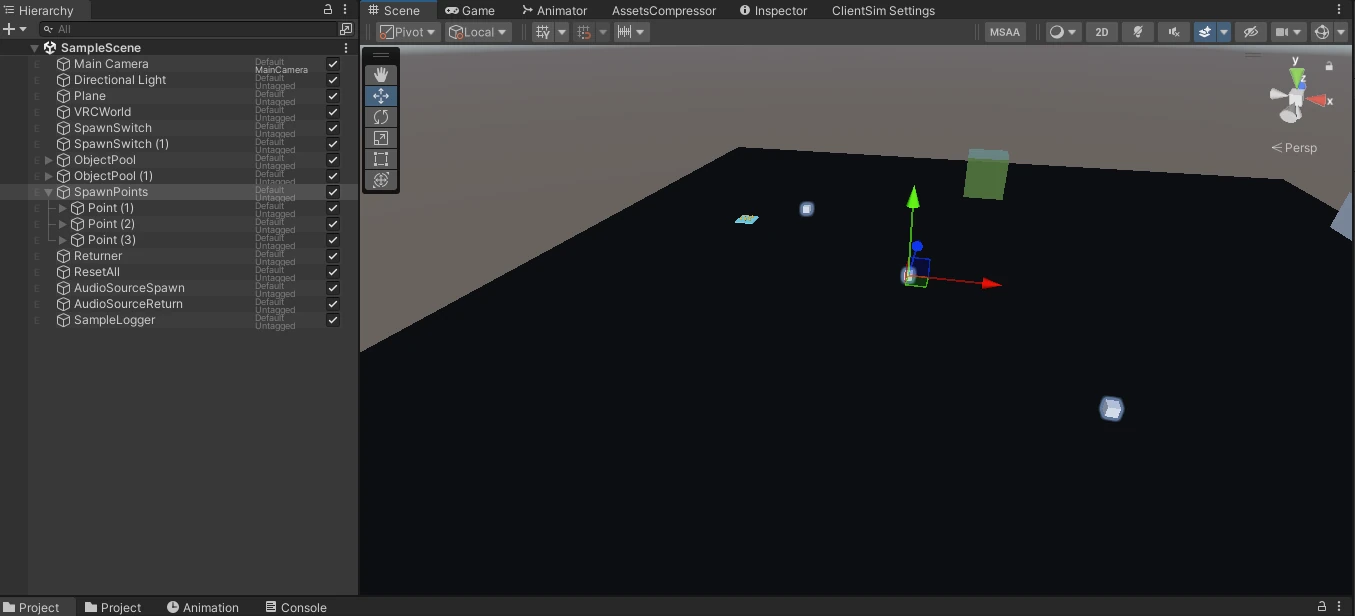
- Create multiple GameObjects in the scene to represent spawn points
- Adjust the position and rotation of each GameObject
- Change the destination mode on
SpawnObjectExtto複数(Multiple) - Register the Transforms in
Spawn Points - Confirm that
Spawn Pointscontains no unassigned entries
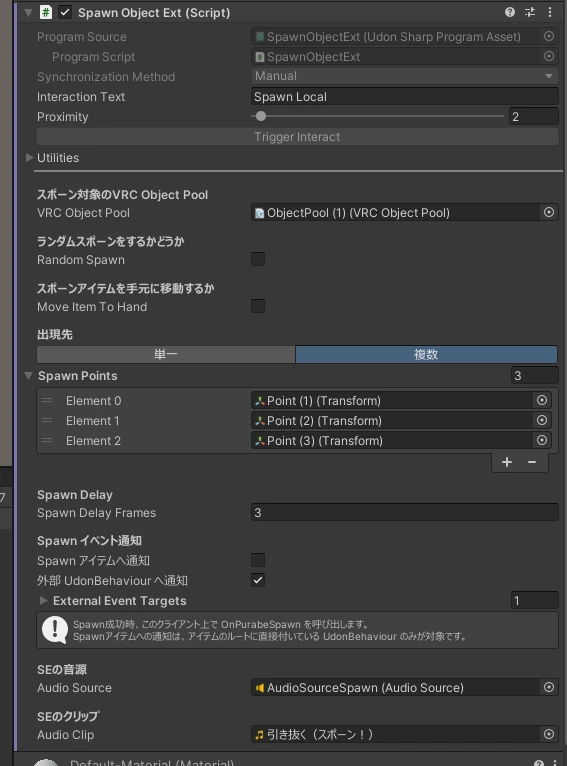
When spawning, the nearest valid Spawn Point to the player operating the switch is selected. Both the position and rotation of the selected point are applied.
Destination priority
- If
Move Item To Handis enabled, the hand closer to the switch - If the destination mode is
単一(Single),Spawn Point - If the destination mode is
複数(Multiple), theSpawn Pointnearest to the player - If no valid destination exists, the initial position of the object registered in the Pool
While Move Item To Hand is enabled, neither the single nor multiple destination setting is used.
Test the behavior
- Place at least two
Spawn Pointsfar apart - Move near one point and Interact with the Spawn switch
- Confirm that the item moves to the nearest point
- Move near another point and confirm that a different destination is selected
If movement is not applied correctly, adjust Spawn Delay Frames for normal objects or Move Delay for items using a helper component.
See SpawnObjectExt settings for details about each field.